Going Secure with TLS
Modern browsers require secure contexts for WebRTC and for features such as camera and microphone access. Configuring TLS enables HTTPS/WSS communication, which is recommended for browser-based playback and is required when serving players over HTTPS to avoid mixed-content issues.
After the initial setup, the following are the default ports used by TLS. Make sure these ports are open in your firewall:
| Port | Purpose |
|---|---|
| 443/TLS | (LL)HLS Streaming, WHIP/WebRTC Signaling, Thumbnail Extraction |
| 8443/TCP | Web Console Endpoint |
Configuration Methods
TLS can be configured manually for both OvenMediaEngine and the Web Console by editing their respective configuration files. For manual configuration, refer to TLS Encryption for OvenMediaEngine and TLS Encryption Settings for the Web Console. The recommended approach is to use the SSL Configuration feature built into the Web Console, which handles both services in one place.
Configure TLS via Web Console
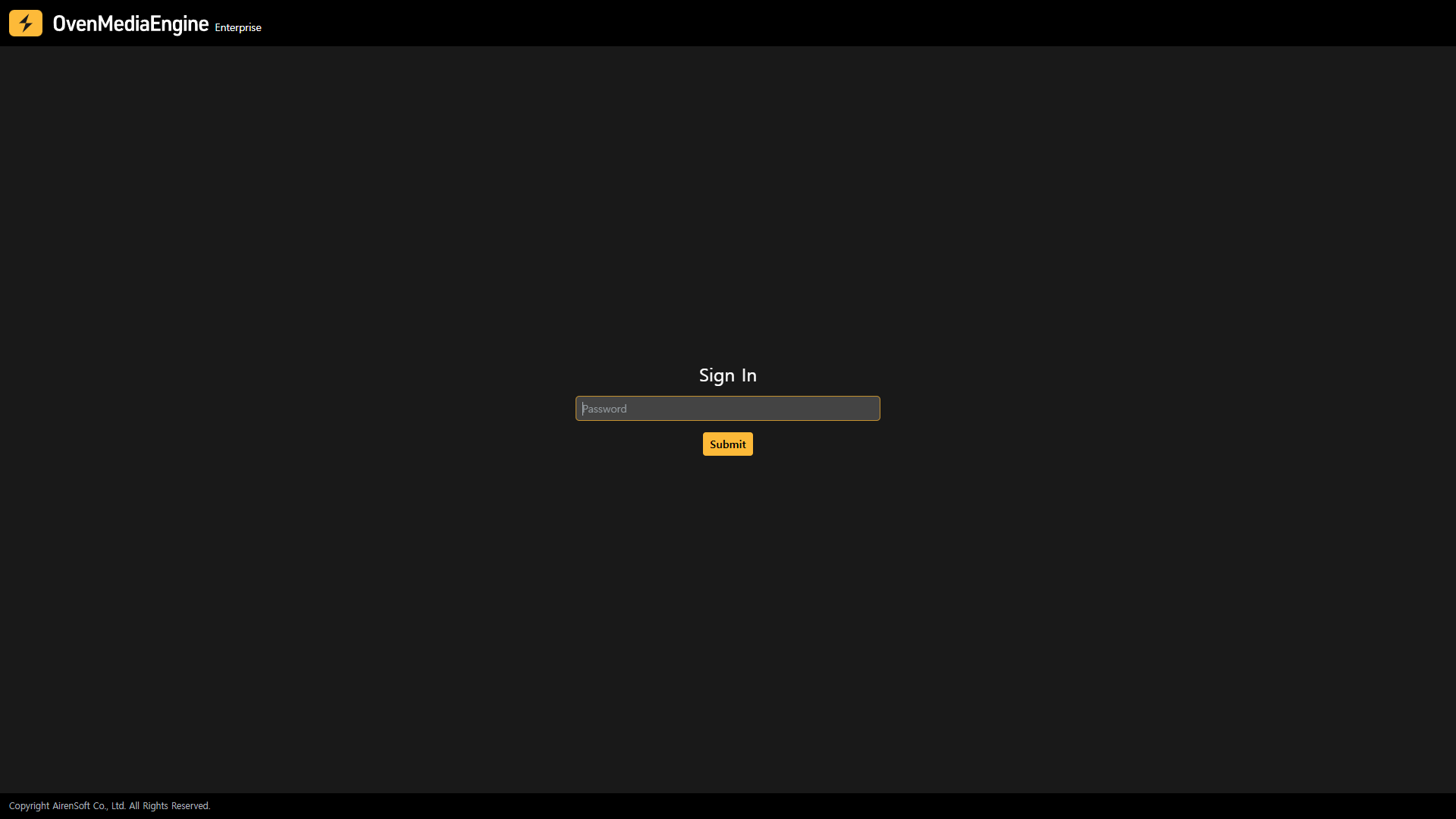
1. Sign in to the Web Console
Open http://Your.Host.Address:8080 in your browser and sign in.
2. Open SSL Configuration
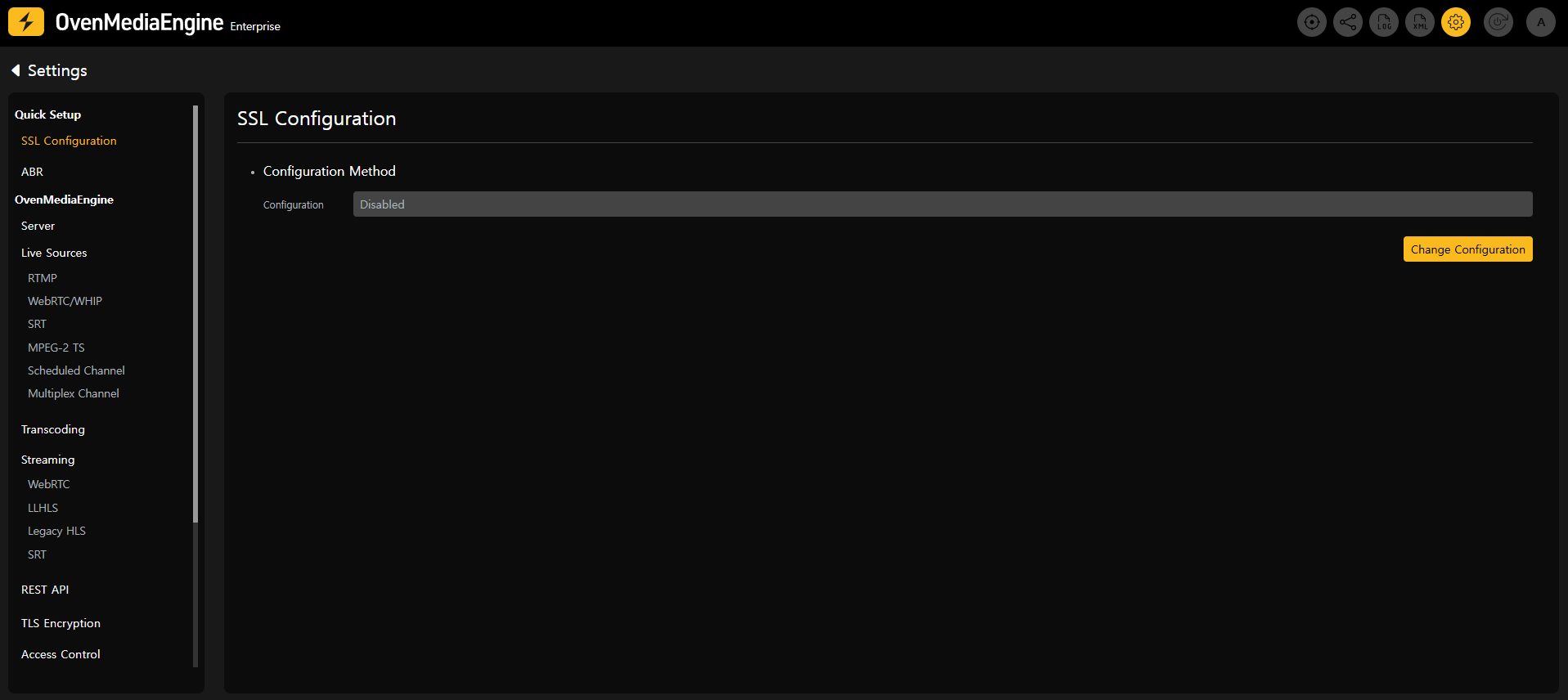
Click the [Settings] icon in the upper-right corner to open the Settings page, then select [SSL Configuration] from the left menu.
3. Select a configuration method
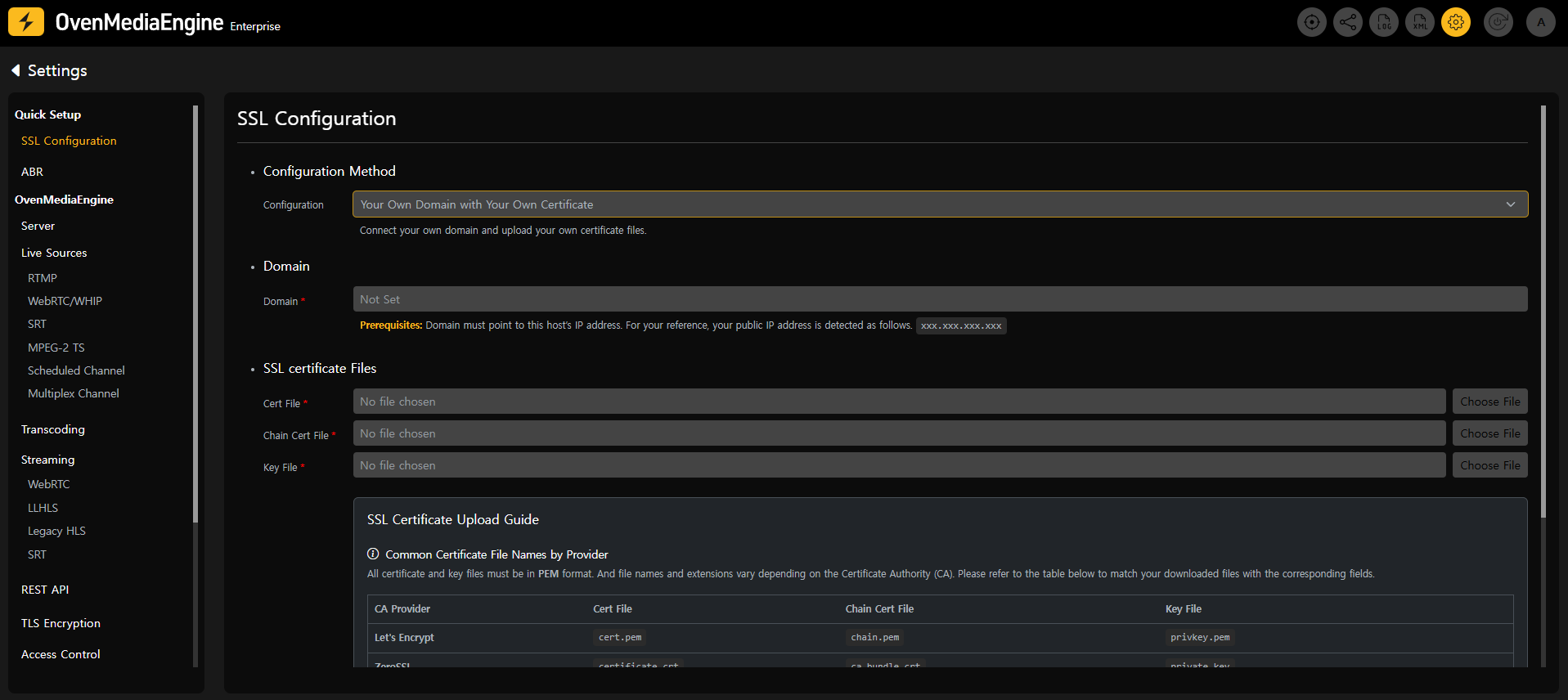
In the Configuration Method section, click [Change Configuration] to switch to edit mode.
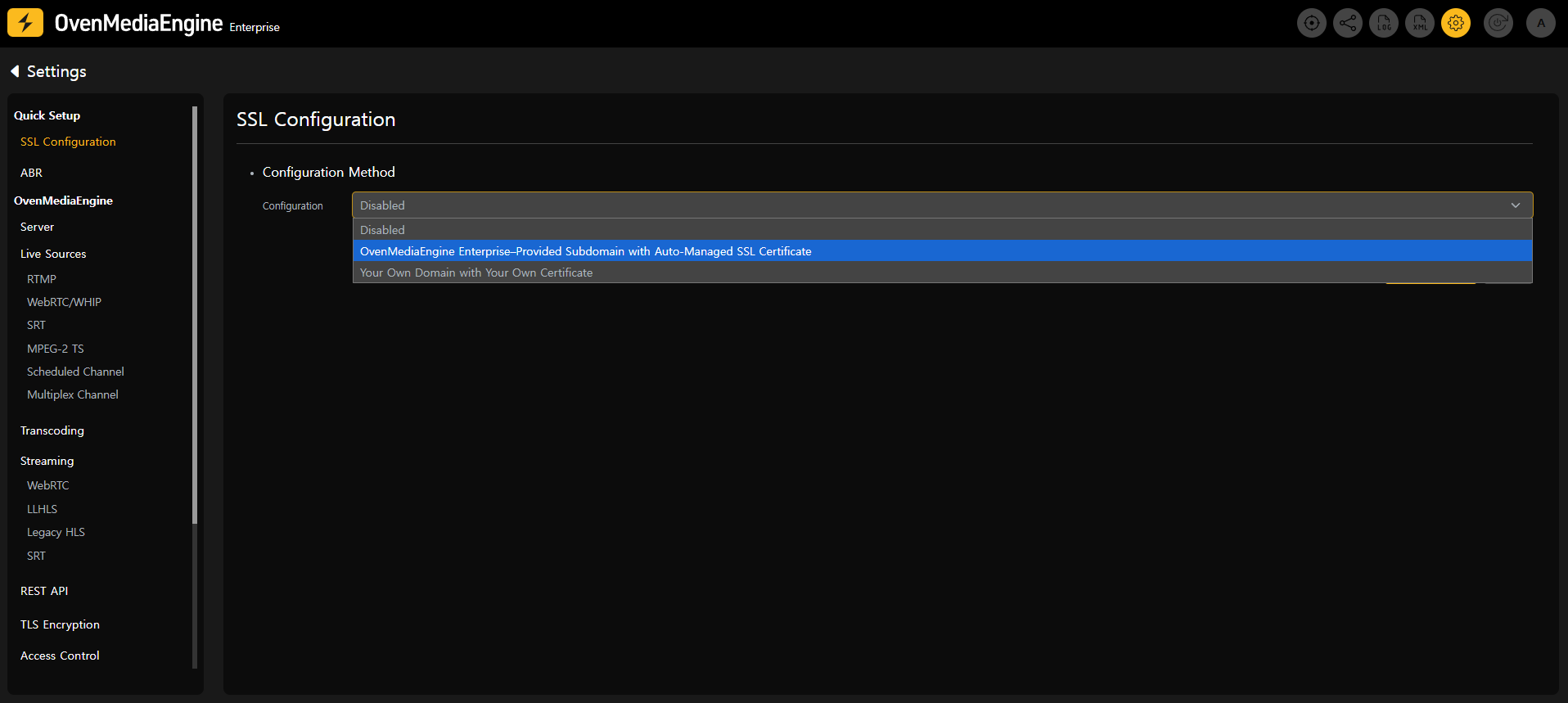
Choose one of the following options:
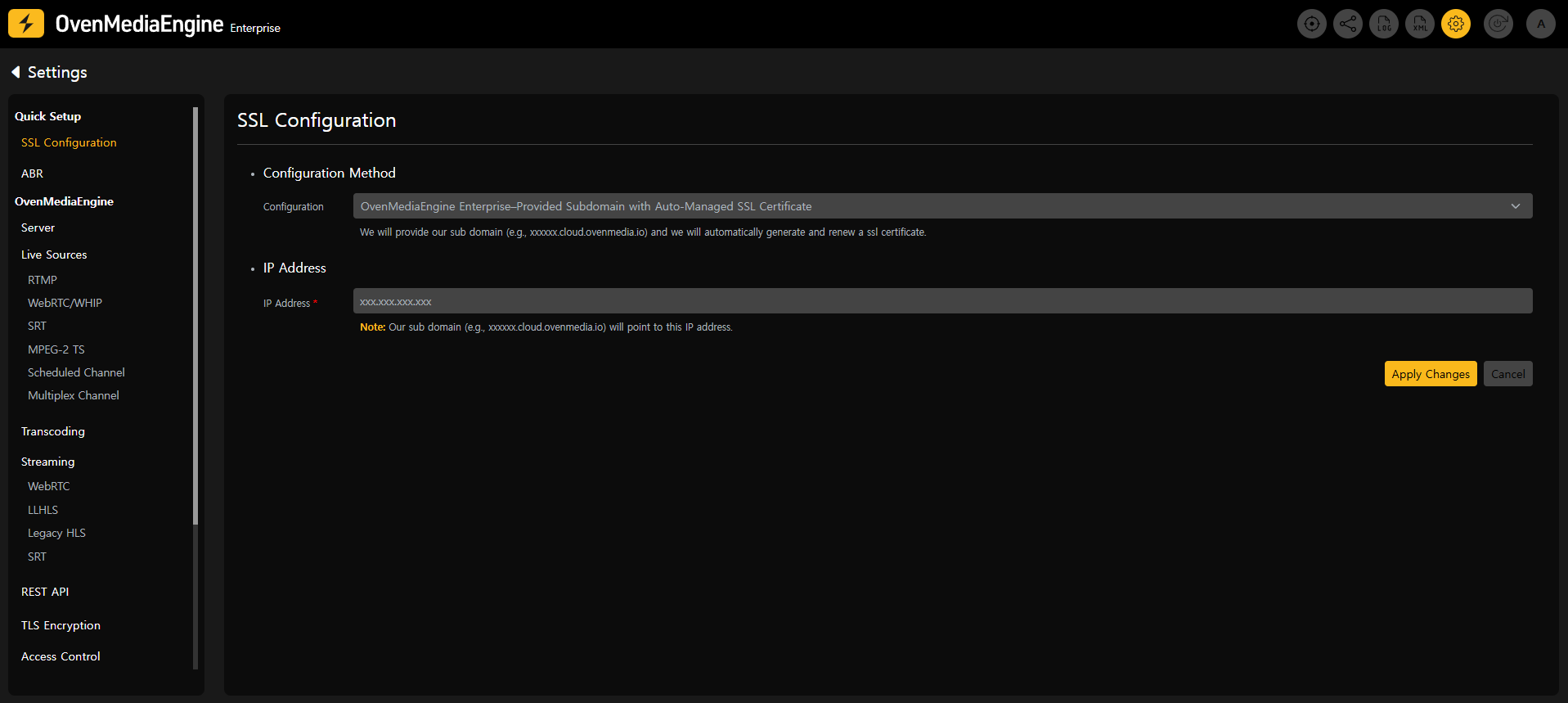
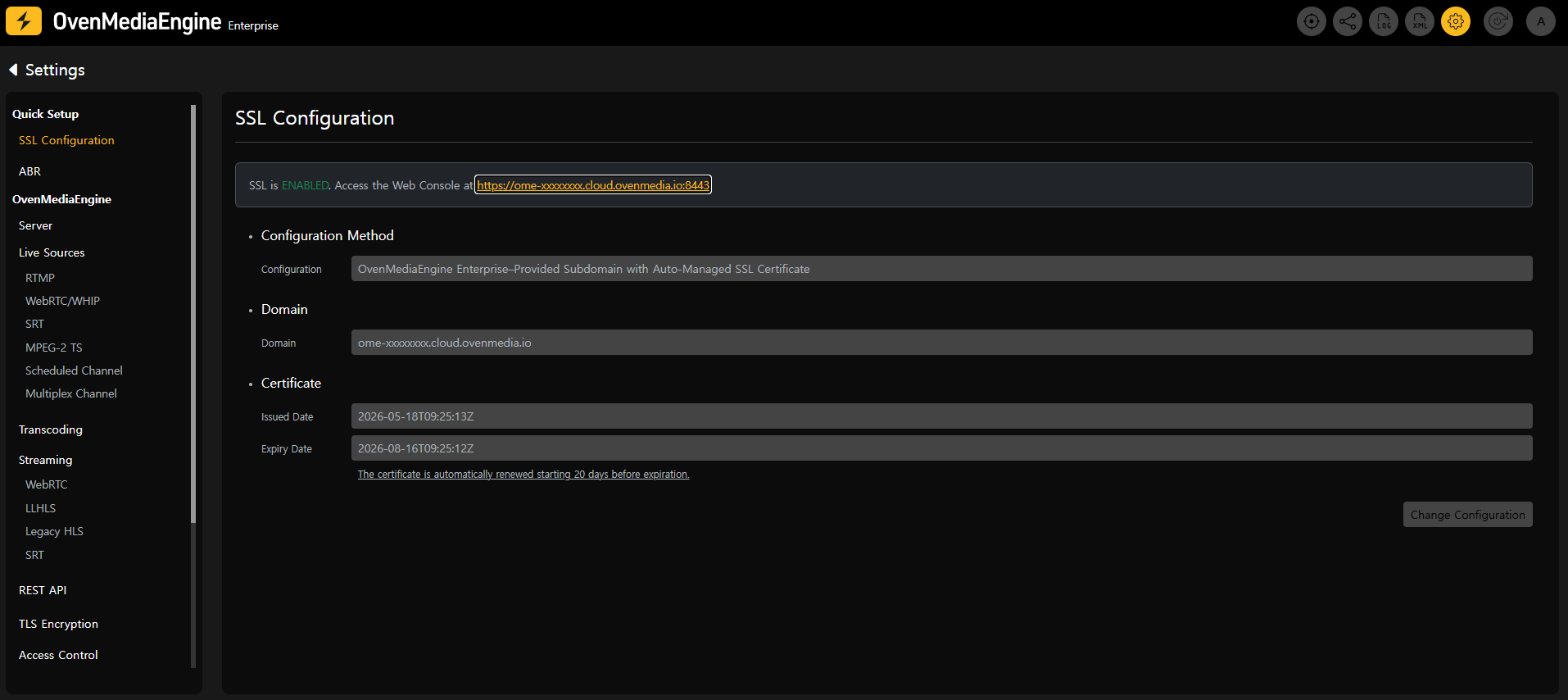
Option A: OvenMediaEngine Enterprise-Provided Subdomain [Recommended]
OvenMediaEngine Enterprise automatically provisions a dedicated subdomain and SSL certificate. Certificate renewals are managed automatically starting 20 days before expiration. No domain ownership or DNS changes are required.
Option B: Your Own Domain with Your Own Certificate
Register your own domain and SSL certificate. Make sure your domain's DNS records point to this host's IP address. Certificates must be renewed manually before expiration. For the required certificate files, see Custom SSL Certificate File Guide.
4. Access via HTTPS
Once SSL is applied, access the Web Console using the HTTPS URL shown on the SSL Configuration page.
5. Verify TLS playback
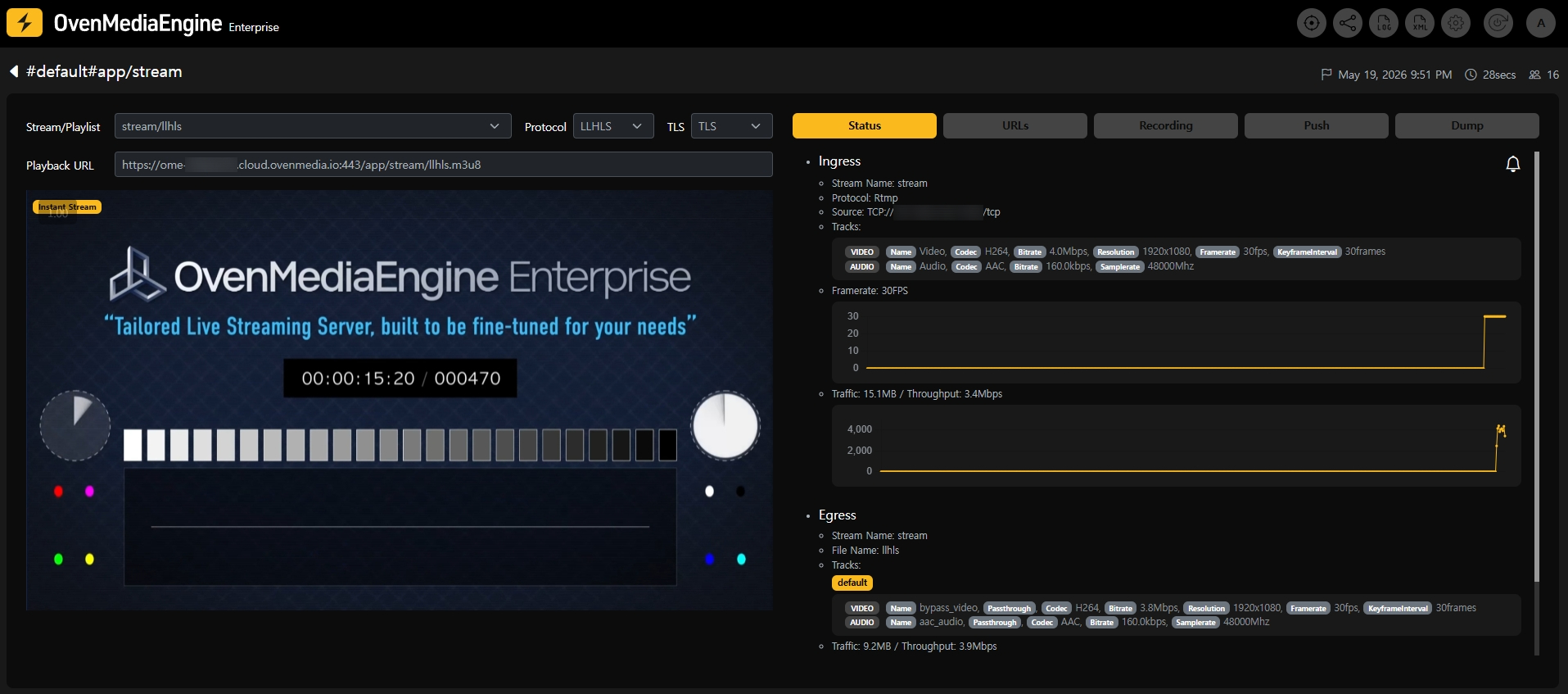
Publish a stream and confirm that playback works with TLS selected in the Stream Monitoring tab.
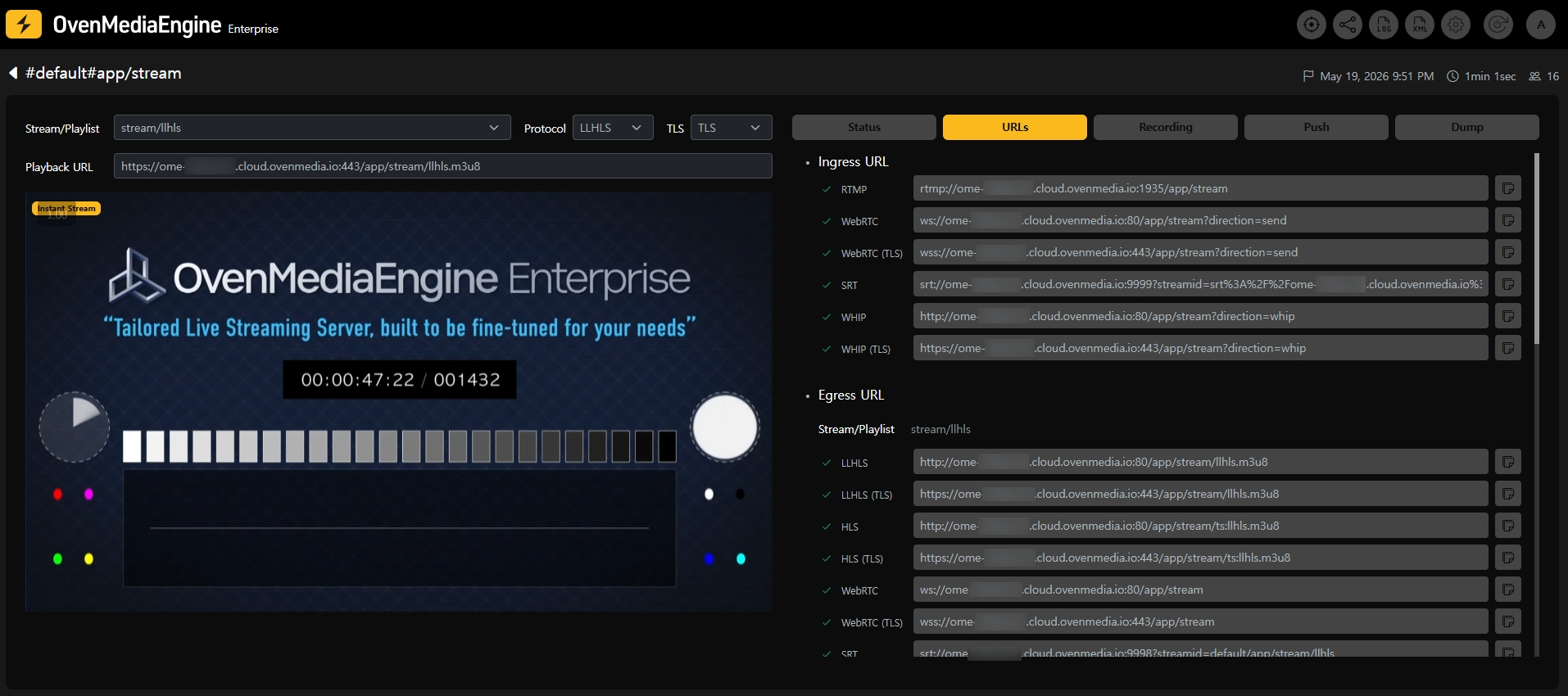
The URLs tab shows the updated TLS-enabled ingress and egress URLs for the stream.
Next Steps
- Adaptive Bitrate Streaming: Configure adaptive bitrate streaming for multiple quality renditions.